 subtimetable
You set how long the timetable generator searches when you start it
- Open the “Check” step. Under “Missing” is the data without which generating is impossible, under “Conflicts” the settings that exclude each other. “Warnings” do not stop generating.
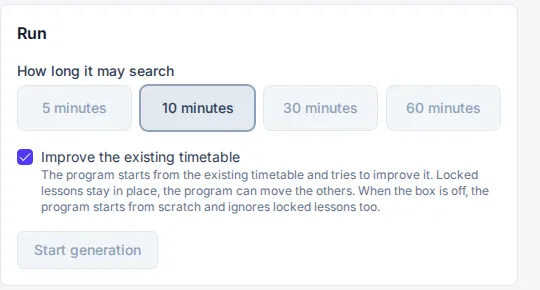
- In the “Run” step, choose “How long it may search”: 5, 10, 30 or 60 minutes.
- The option “Improve the existing timetable” is turned on by default. The generator then starts from the existing timetable and does not move locked periods. When you turn it off, it starts from scratch and ignores locks.
- Click “Start generation”.
While it searches, you see which phase it is in and how many minutes have passed. If you stop a run with “Stop”, its result is not saved. A run with the status “Queued” waits for the runs before it to finish, and the app tells you how many there are.
A finished run has the status “Completed”, “Partially completed”, “Infeasible”, “Failed” or “Stopped”. “Partially completed” means the generator found a usable timetable but did not finish the search in the chosen time. For “Infeasible” the app gives the cause, for example how many periods a teacher needs and how many they have available.
If generating fails, the previous timetable of the version stays. If you want to keep both the old and the new one, copy the version before the run.