 subtimetable
After generating, you review the timetable and fix it by dragging periods
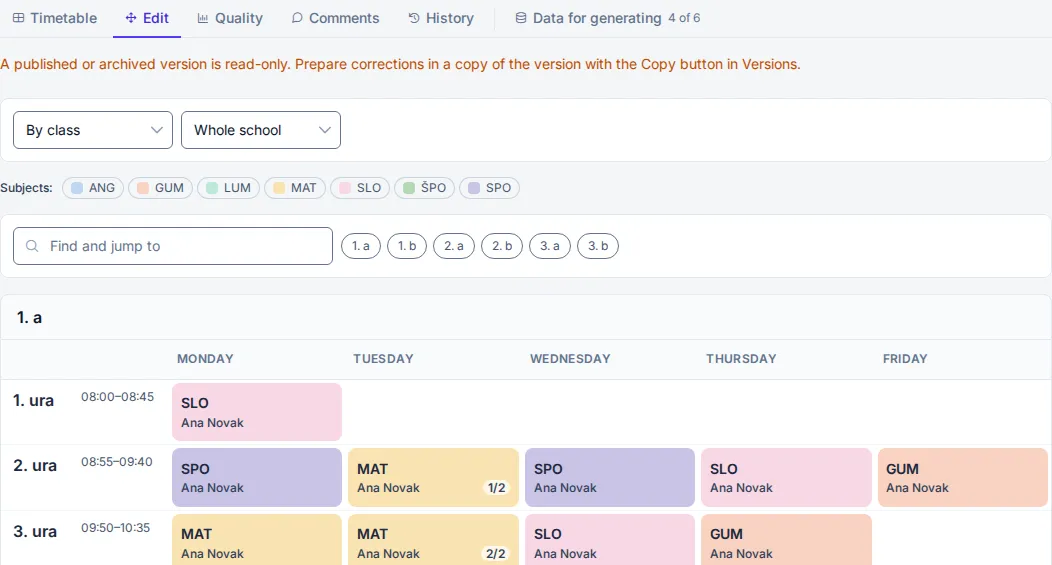
You open the timetable in “Versions”. Each version has the tabs “Timetable”, “Edit”, “Quality”, “Comments” and “History”. You edit periods on a computer, and on a phone you only view the timetable.
In the “Editing” tab:
- Drag a period to another slot. A blue border shows a free place, orange shows the period that yours swaps with, and red shows a place where you cannot move the period.
- Drag a period you do not want in the timetable to “Unassigned”.
- Lock a period that is right by clicking the padlock (“Lock lesson”). When you generate again with “Improve the existing timetable”, it stays in place. To move it, unlock it first (“Unlock lesson”).
Periods with a room conflict are marked in the timetable grid. A conflict means that the period has no room or that the room is occupied at that time.
The “Quality” tab shows the timetable score, the number of violations for each rule and, in the “Gaps by teacher” table, who has the most gaps and how long their longest gap is.
A published version is read-only. You prepare fixes in a copy that you make with “Copy” in “Versions”. Who changed what in a version and when is written in the “History” tab.