SL

Checking the timetable before and after generating

Timetable checks in subtimetable go through your school’s data and rule settings before you start generating, and the finished timetable after the run. Every version gets a quality score that you see before you publish it.

You cannot start a run while data is missing or settings conflict

Under “Missing”, Check lists the data without which generating cannot start, and under “Conflicts” the settings that rule each other out. One example is a subject with more periods a week than the required rule “Max periods of the same subject per day” lets you fit into the school days. “Warnings” do not stop generating. When Check finds nothing in the way but the timetable still cannot be built, the run ends with the status “Infeasible” and the app shows the cause.
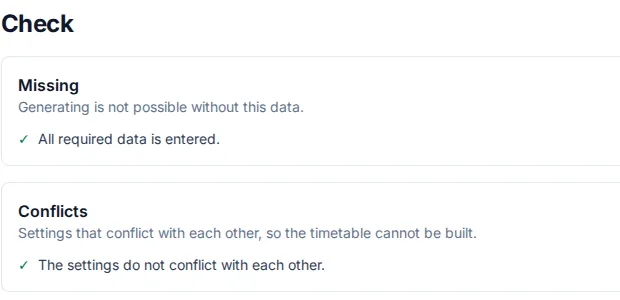
Data check before generating, with the sections Missing and Conflicts

The Quality tab shows rule violations and room conflicts

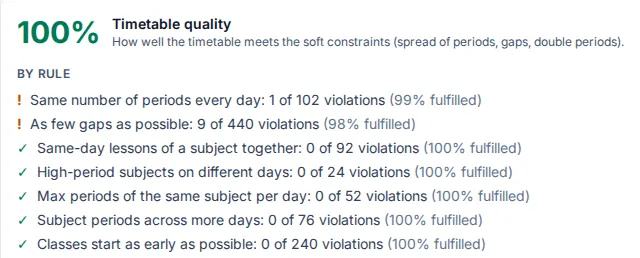
For each version, the “Quality” tab shows the timetable’s score and, for every rule that is not required, how often it is broken. For “No free periods during lessons” that is the number of free periods classes have. Quality also counts lessons with a room conflict, which are lessons with no room or in a room that is already in use at that time.

Timetable quality score with a list of violations by rule

What else to check before you publish

In the “Edit” tab you move a lesson to another slot or swap it with another. When a swap is not possible, the app says why, for example because the other lesson is longer. Lock the lessons that are right so they stay in place when you generate again. You can add a comment to a lesson or to the whole version, for example that the sports hall is not free at that time. Before you confirm publishing, you see how many lessons still have a room conflict. Publishing makes the version the school’s valid timetable, and from then on it is read-only.

Enter your own school and see the timetable it produces

Soon

info@subtimetable.com